

 Evidence
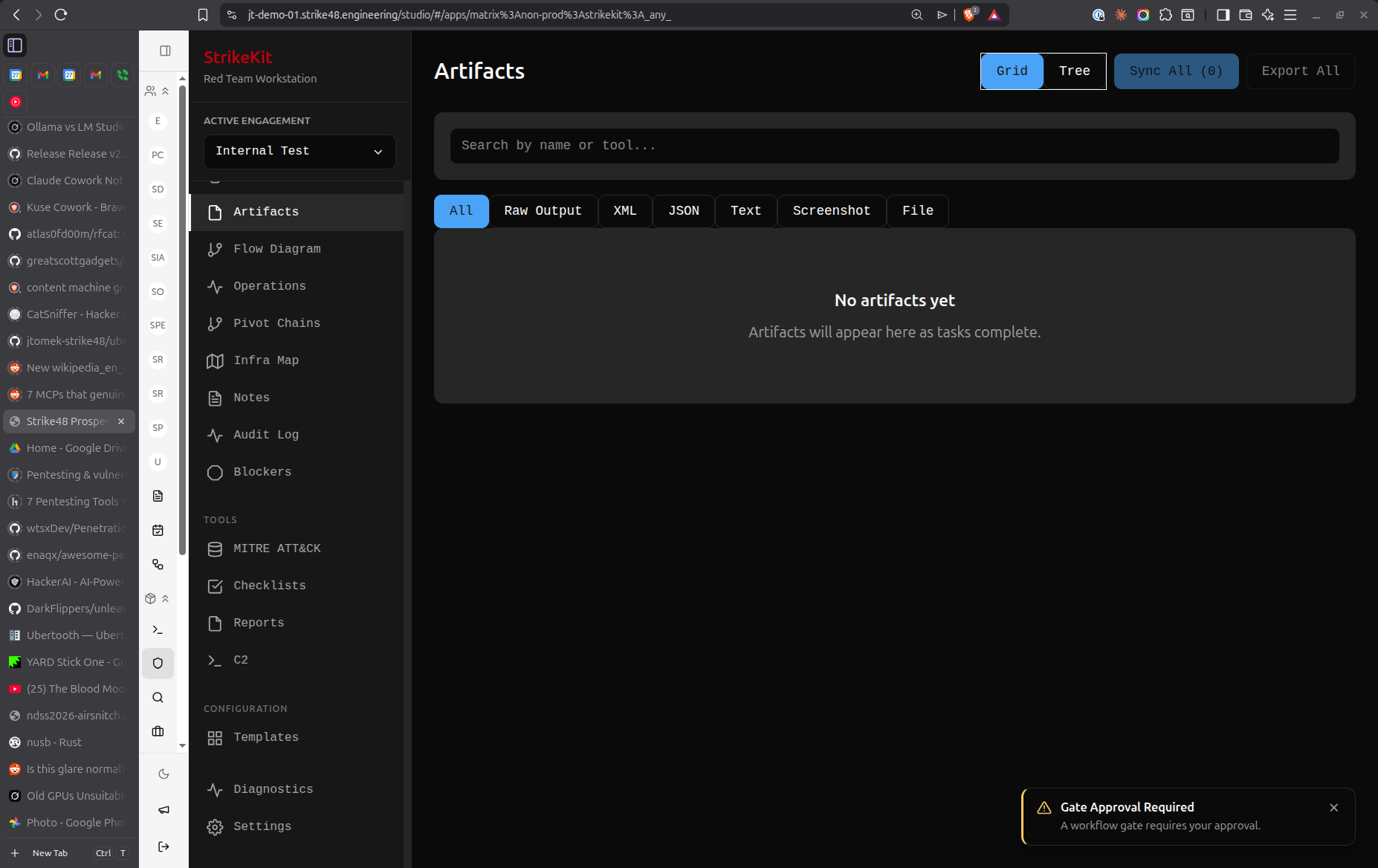 Evidence browser showing collected artifacts and proof
Why "Evidence"?
The term "Evidence" (versus "Artifacts") emphasizes:
- Chain of custody: Timestamped and tamper-proof
- Legal defensibility: Professional terminology for reports
- Proof of compromise: Supporting documentation for findings
- Audit trail: Complete record of engagement activities
Creating Evidence
- Navigate to Analysis → Evidence
- Click Upload Evidence or Create Entry
- Select evidence type and provide details
Evidence Types
Screenshot
Visual proof of access or vulnerability:
- Image: PNG, JPG, or GIF file
- Description: What the screenshot shows
- Timestamp: When captured
- Source: Which target or activity
Common uses:
- Desktop access proof
- Web application vulnerability
- Configuration interface
- Error messages
- Data exfiltration proof
Command Output
Terminal or shell command results:
- Command: Command executed
- Output: Command results (text)
- Target: Where executed
- Agent: C2 agent ID (if applicable)
Common uses:
- System information (
whoami,hostname) - Enumeration results (
net user,ps) - File listings (
ls,dir) - Network information (
ipconfig,netstat)
File
Downloaded or extracted files:
- Filename: Original file name
- File: Actual file content
- Size: File size
- Hash: SHA256 hash for integrity
- Source: Where file was obtained
Common uses:
- Configuration files (web.config, .env)
- Database backups
- Source code
- Sensitive documents
- Password files
Network Capture
Packet captures and network traffic:
- PCAP: Wireshark/tcpdump capture file
- Protocol: HTTP, SMB, LDAP, etc.
- Summary: What traffic shows
- Filter: Relevant filter for analysis
Common uses:
- Cleartext credentials in transit
- Authentication bypass
- Session hijacking
- Data exfiltration
- Command and control traffic
Log File
System or application logs:
- Log Type: System, application, security
- Content: Log entries
- Timeframe: Log date range
- Source: System generating logs
Common uses:
- Authentication logs
- Error logs revealing vulnerabilities
- Audit logs
- Access logs
Auto-Collection
Evidence is automatically collected from:
C2 Operations
- Screenshot command output
- Download command results
- All command responses (if significant)
- Agent metadata
Reconnaissance
- Scan results
- Enumeration output
- OSINT findings
- Service banners
Manual Capture
- Upload files directly
- Paste command output
- Drag-and-drop screenshots
Evidence Metadata
Required Fields
Type: Screenshot, Command Output, File, Network Capture, Log
Description: What this evidence shows
Good:
- "Proof of Administrator access to FILESERVER01"
- "SQL injection in user search parameter"
- "Plaintext database credentials in web.config"

Avoid:
- "Screenshot"
- "File"
- "Evidence"
Important Fields
Timestamp: When evidence was collected
- Auto-set for C2 operations
- Manually set for manual uploads
- Critical for chain of custody
Target: Associated target (if applicable)
- Links evidence to specific system
- Shows evidence in target details
- Provides context for findings
Finding: Related finding (if applicable)
- Links evidence to vulnerability
- Shows evidence in finding documentation
- Supports finding severity rating
Tags: Categorize evidence
Examples:
- critical
- credential-exposure
- privilege-escalation
- data-exfiltration
- proof-of-access
Chain of Custody Fields
Collected By: Who collected the evidence
- Auto-populated from user context
- Required for legal defensibility
Collection Method: How evidence was obtained
- C2 command
- Manual screenshot
- Network capture
- File download
Hash: SHA256 hash of file evidence
- Auto-calculated for files
- Ensures integrity
- Detects tampering
Linking Evidence
To Findings
Attach evidence to vulnerability documentation:
- When creating/editing finding, click Add Evidence
- Select evidence items from list
- Evidence thumbnails appear in finding
- Click evidence to view full version
Best practice:
- Every finding should have supporting evidence
- Use multiple evidence items if needed
- Screenshots alone aren't always sufficient
To Targets
Associate evidence with specific targets:
- In evidence details, select Target
- Choose relevant target from list
- Evidence appears in target's evidence list
- Provides complete target picture
To Activities
Link evidence to engagement activities:
- Evidence automatically linked from C2 operations
- Manually link when uploading
- Shows evidence in timeline
- Provides context in kill chain
Evidence Organization
By Type
Filter by evidence type:
- Screenshots only
- Command outputs
- Files
- Network captures
- Logs
By Target
View evidence per target:
- Show all evidence from specific host
- Group by network
- Filter by compromise status
By Finding
View evidence per finding:
- Show supporting evidence for finding
- Verify completeness
- Ensure sufficient proof
By Date
Sort chronologically:
- Recent evidence first
- Group by engagement phase
- Timeline correlation
Search
Search by:
- Description
- Filename
- Tags
- Command
- Target name
Evidence Storage
File Storage
Evidence is stored securely:
- Location: Database BLOB storage
- Encryption: Encrypted at rest
- Integrity: SHA256 hashing
- Backup: Included in database backups
Size Limits
Be mindful of storage:
- Screenshots: Compress to reasonable size (PNG recommended)
- Command output: Text-only, minimal size
- Files: Large files increase database size
- PCAPs: Consider storing externally and linking
Retention
Evidence is retained:
- Throughout engagement
- During report generation
- Post-engagement per agreement
- Until explicitly deleted
Evidence Review
Pre-Report Review
Before generating reports:
-
Completeness check:
- Every finding has supporting evidence
- Evidence is clearly labeled
- Timestamps are accurate
-
Quality check:
- Screenshots are readable
- Command outputs are complete
- Files are relevant
- No sensitive data exposure (PII, corporate secrets)
-
Organization:
- Evidence is properly tagged
- Linked to correct findings
- Target associations are correct
Sanitization
Before including in reports:
-
Redact sensitive information:
- Personal information (PII)
- Credentials (unless necessary for finding)
- Corporate confidential data
- Employee information
-
Crop screenshots:
- Remove irrelevant portions
- Focus on relevant information
- Maintain context
-
Anonymize if required:
- Replace usernames with generic identifiers
- Mask IP addresses if needed
- Follow client requirements
Evidence in Reports
Report Integration
Evidence appears in generated reports:
Finding sections:
- Embedded screenshots
- Referenced command output
- Linked file downloads
- PCAP analysis summaries
Appendices:
- Complete evidence catalog
- Full command outputs
- Technical details
- Raw data
Executive summary:
- Key screenshots showing impact
- Proof of access
- Critical findings evidence
Evidence References
Reference evidence clearly in findings:
Good:
"As shown in Screenshot EV-123, administrative access was achieved..."
"The configuration file (EV-456) contained plaintext credentials..."
"Network capture EV-789 demonstrates cleartext authentication..."

Include:
- Evidence ID or reference
- What evidence shows
- Why it's relevant
- How to interpret
Best Practices
Collection
- Collect immediately: Capture evidence as you work
- Multiple angles: Take multiple screenshots if needed
- Context matters: Include enough context to understand evidence
- Timestamps: Ensure timestamps are accurate
- Quality over quantity: Relevant evidence, not everything
Documentation
- Clear descriptions: Explain what evidence shows
- Proper labeling: Use consistent naming
- Complete metadata: Fill in all relevant fields
- Linking: Connect to targets and findings
- Chain of custody: Maintain integrity
Organization
- Tag consistently: Use same tag names across engagement
- Group logically: Organize by finding or target
- Review regularly: Ensure nothing is missing
- Clean up: Remove duplicates or unnecessary evidence
Security
- Protect sensitive data: Handle responsibly
- Encrypt storage: Use encrypted database
- Access control: Limit who can view/modify
- Secure transmission: Encrypt when sharing
- Proper disposal: Delete per agreement
Common Workflows
During Exploitation
- Attempt exploitation
- If successful, immediately capture evidence:
- Screenshot of access
- Command output showing success
- Configuration file if relevant
- Create evidence entry
- Link to target
- Tag appropriately
- Continue operation
During Reconnaissance
- Run reconnaissance tools
- Save output as evidence:
- Scan results
- Enumeration output
- Service banners
- Link to discovered targets
- Tag for later analysis
- Reference in activities
During Report Writing
- Review all findings
- For each finding:
- Verify supporting evidence exists
- Review evidence quality
- Ensure evidence is linked
- Sanitize if necessary
- Add missing evidence if needed
- Generate report with evidence
Post-Engagement
- Archive all evidence
- Provide evidence package to client (if requested)
- Retain per agreement
- Secure disposal after retention period
Tips
- Screenshot early: Capture evidence before it disappears
- Multiple formats: Use screenshots AND command output
- Full context: Include enough information to understand evidence
- Timestamp accuracy: Verify timestamps are correct
- Hash verification: Use hashes for file integrity
- Organize as you go: Don't batch-organize at the end
- Link immediately: Connect evidence to findings/targets right away
- Quality control: Review evidence clarity and relevance
- Sanitize appropriately: Remove sensitive data before sharing
- Archive properly: Store securely for future reference
Troubleshooting
Evidence Upload Failed
If upload fails:
- Check file size (may exceed limit)
- Verify file format is supported
- Check database storage space
- Try compressing large files
- Contact support if persistent
Evidence Not Appearing in Finding
If evidence doesn't show in finding:
- Verify evidence is linked to finding
- Check finding status (draft vs approved)
- Refresh the page
- Verify evidence wasn't accidentally deleted
Evidence Integrity Issues
If hash doesn't match:
- Evidence may have been modified
- Check file corruption
- Review access logs
- Consider re-collecting evidence