

 Interface Overview
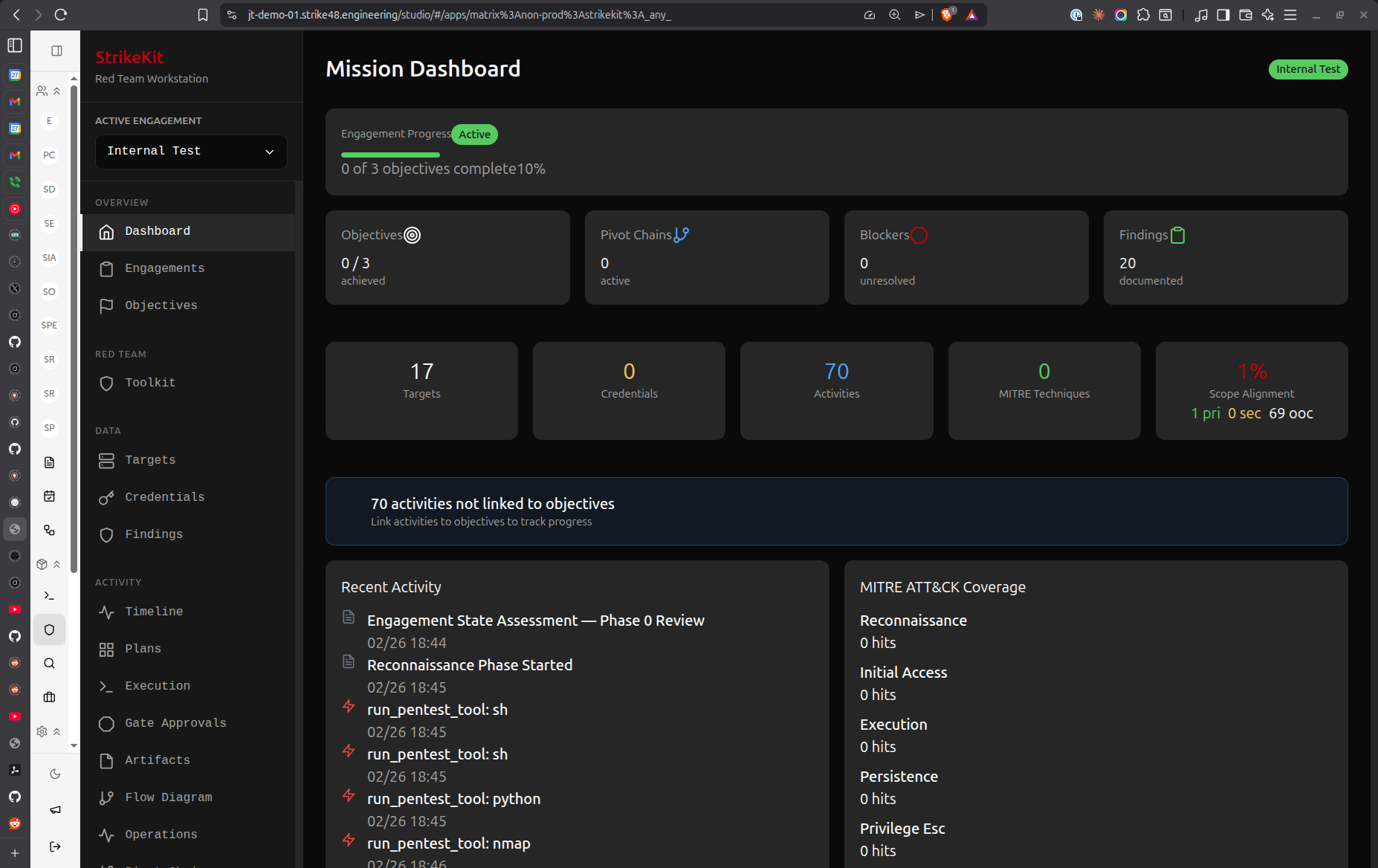 Main interface showing sidebar navigation and mission dashboard
Navigation Structure
Headquarters
Command center - always available regardless of active engagement.
Assistant
AI-powered assistant that understands your engagement context. Ask questions, get recommendations, or request analysis.
Dashboard
Single engagement metrics and overview. Shows:
- Engagement status and timeline
- Target counts and statistics
- Finding severity breakdown
- Recent activity
- Pending gates and blockers
Dashboard showing engagement metrics and statistics
Engagements
Manage all red team engagements:
- Create new engagements
- View engagement details (scope, ROE, dates, client info)
- Switch between engagements
- Archive completed engagements
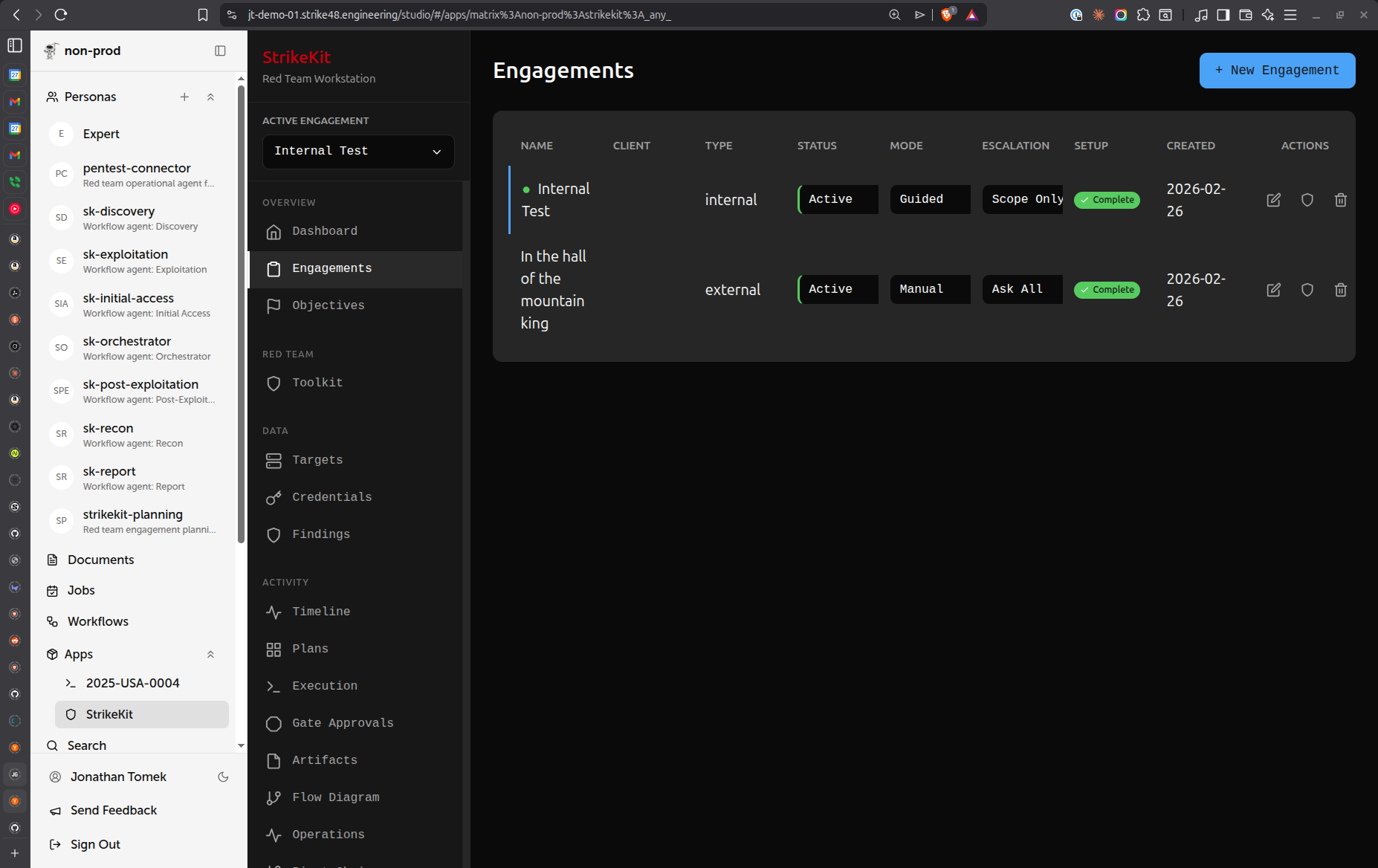 Engagement management interface showing all engagements
Templates
Engagement templates for bootstrapping new engagements with pre-configured:
- Objectives
- Checklists
- Common targets
- Report templates
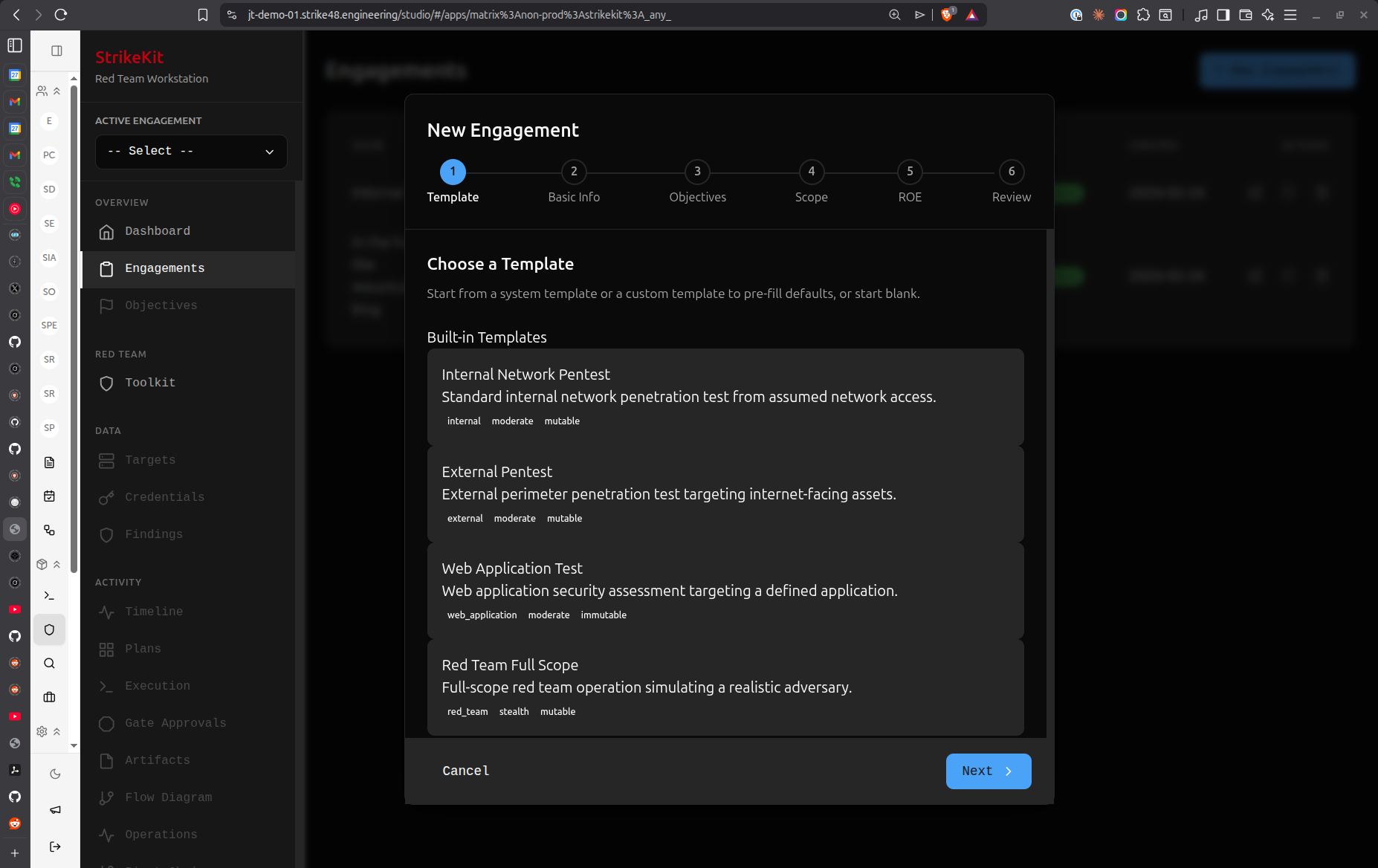 Engagement templates for quick setup
Mission
Engagement planning and execution - requires active engagement.
Planning
AI-assisted structured walkthrough for engagement planning:
- Scope clarification
- Objective definition
- Resource planning
- Risk assessment
Execution
Engagement kickoff and step-by-step monitoring:
- Start engagement activities
- Monitor operation progress
- Approval gates for risky actions
- Real-time status updates
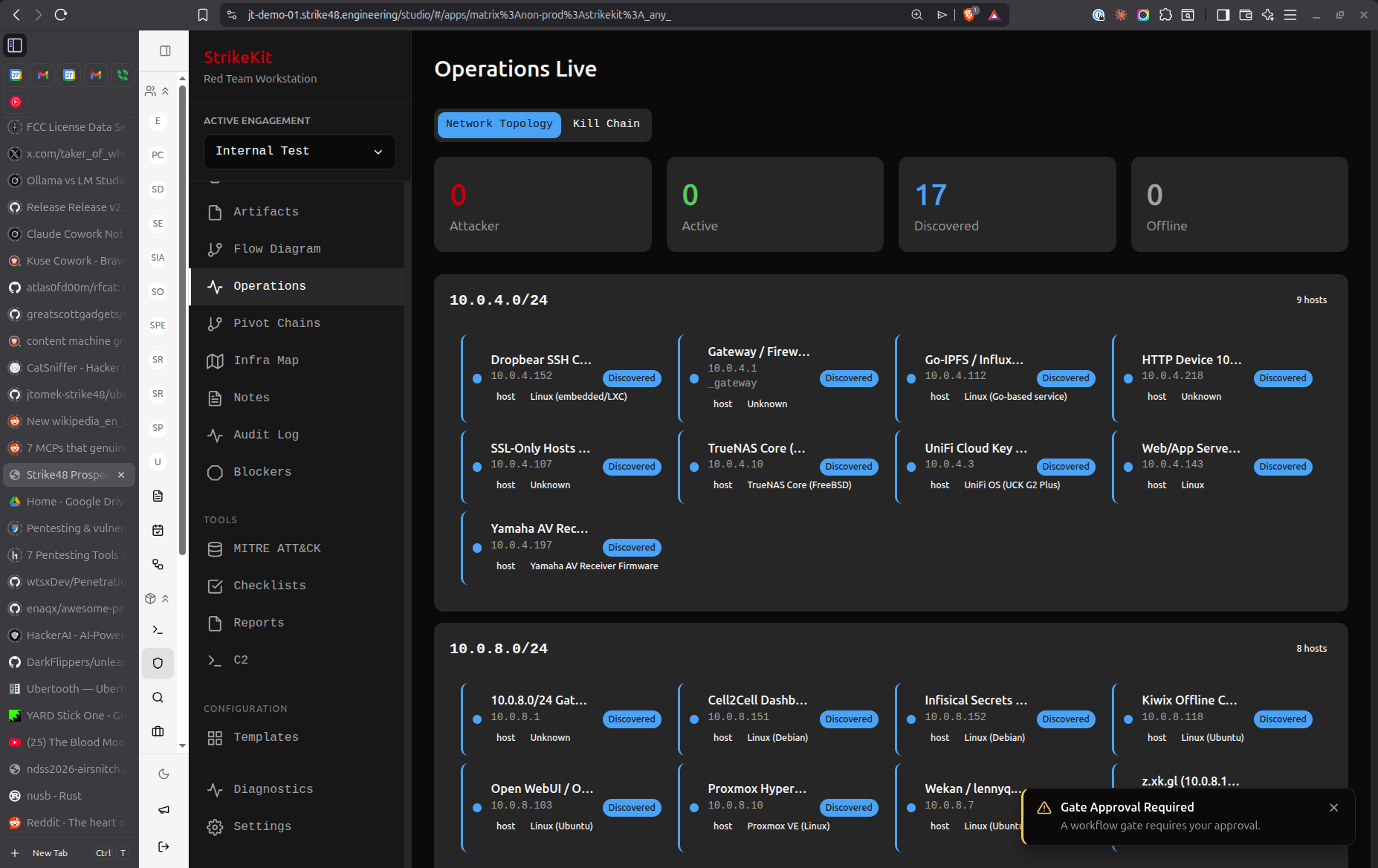 Real-time operation monitoring and progress tracking
Objectives
Mission goals to achieve during the engagement:
- Define success criteria
- Track completion status
- Link objectives to findings
- Detect scope drift
Pivot Chains
Lateral movement paths through infrastructure:
- Track pivot sequences
- Visualize attack chains
- Identify blockers
- Document compromise paths
Checklists
Verification steps for different engagement types:
- External pentest methodology
- Internal network assessment
- Web application testing
- Active Directory attack paths
Intelligence
Data collection - requires active engagement.
Targets
Hosts, networks, and services (manual or auto-discovered):
- Add targets manually
- Import from reconnaissance
- Track service information
- Link to credentials and findings
- Mark as compromised
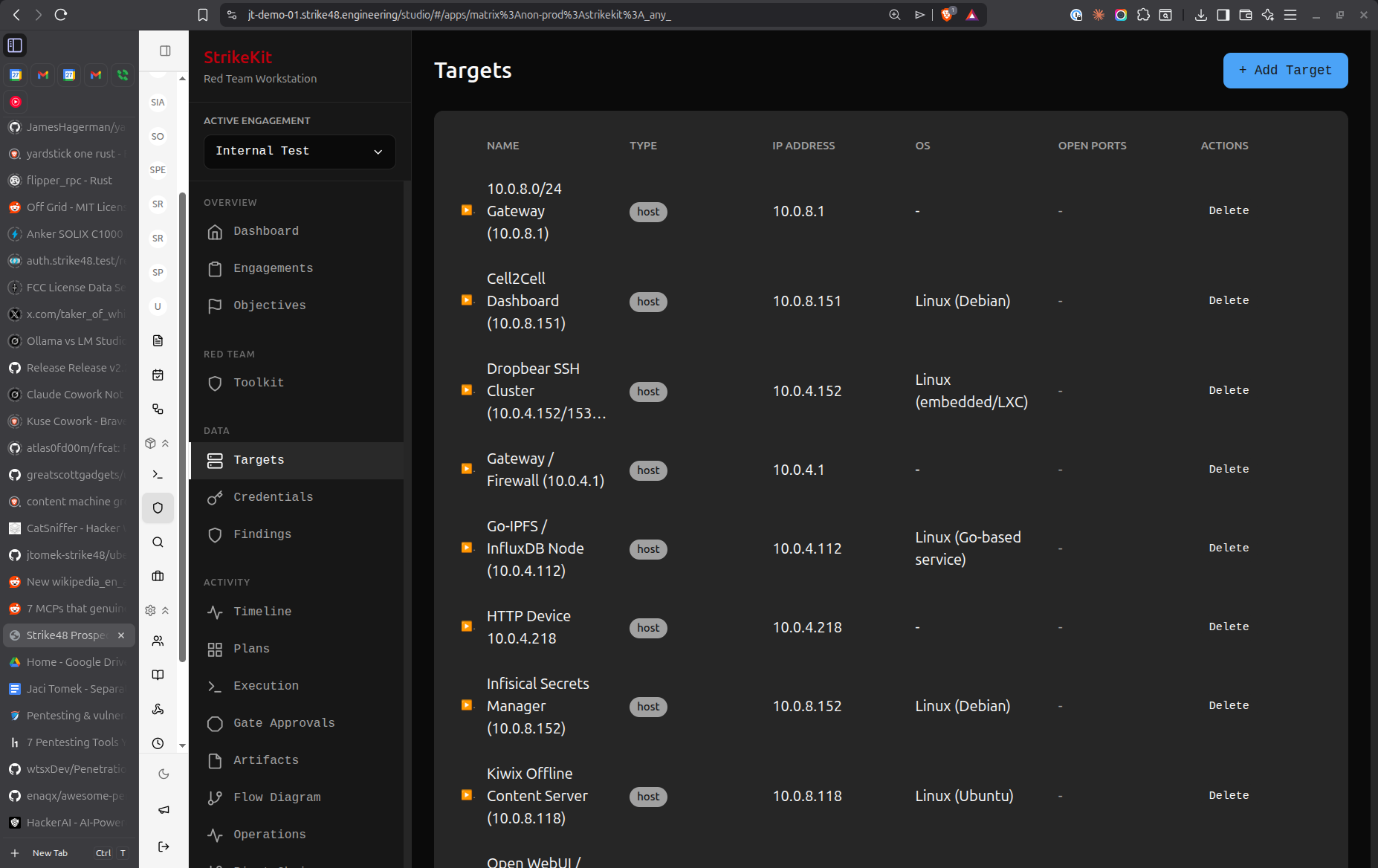 Target systems with service and compromise tracking
Analysis
What you found and mapped - requires active engagement.
Credentials
Harvested credentials:
- Username/password pairs
- Password hashes
- API tokens
- SSH keys
- Organize by target
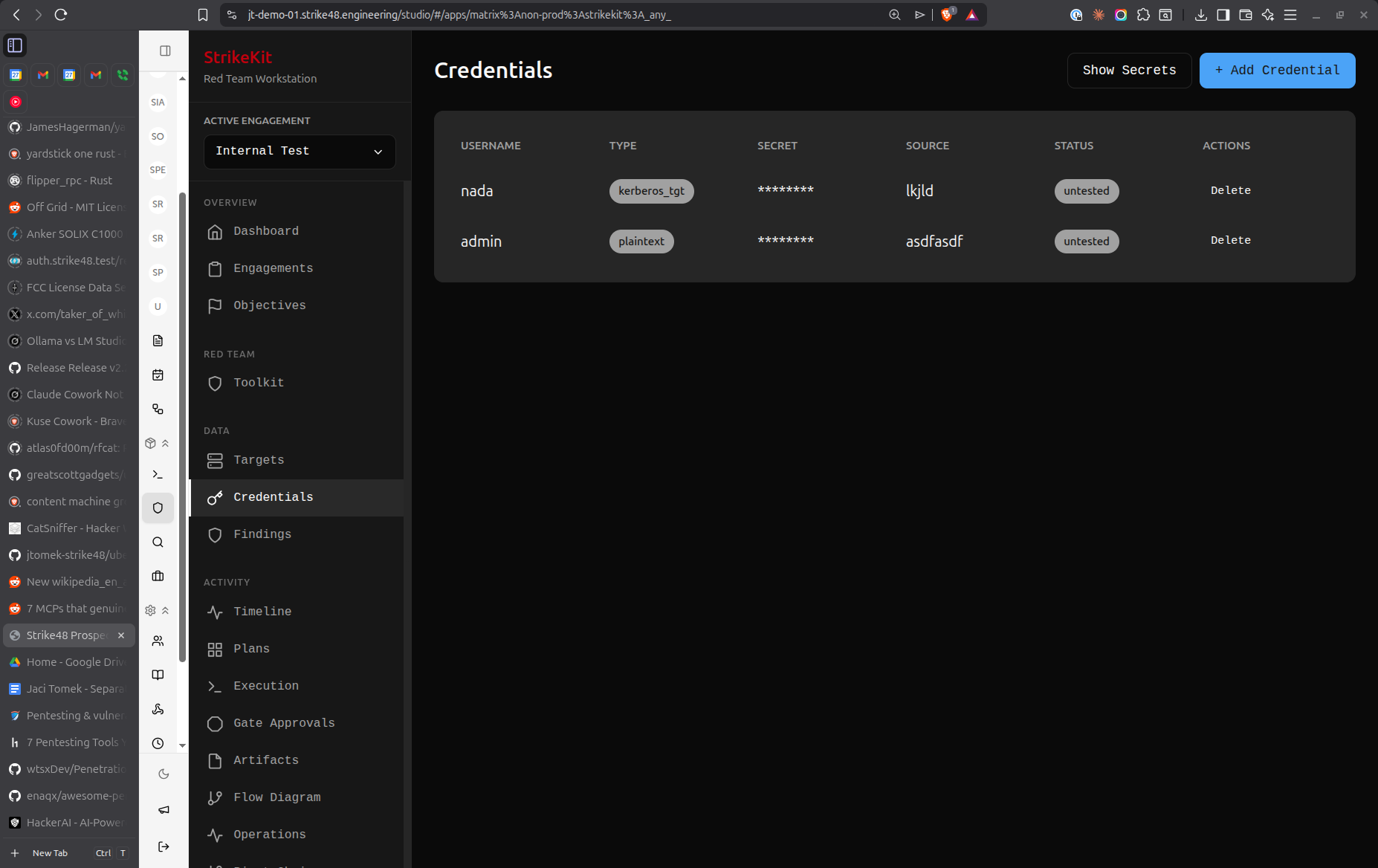 Credential collection and organization
Evidence
Proof for findings:
- Screenshots
- Command output
- Configuration files
- Network captures
- Chain of custody tracking
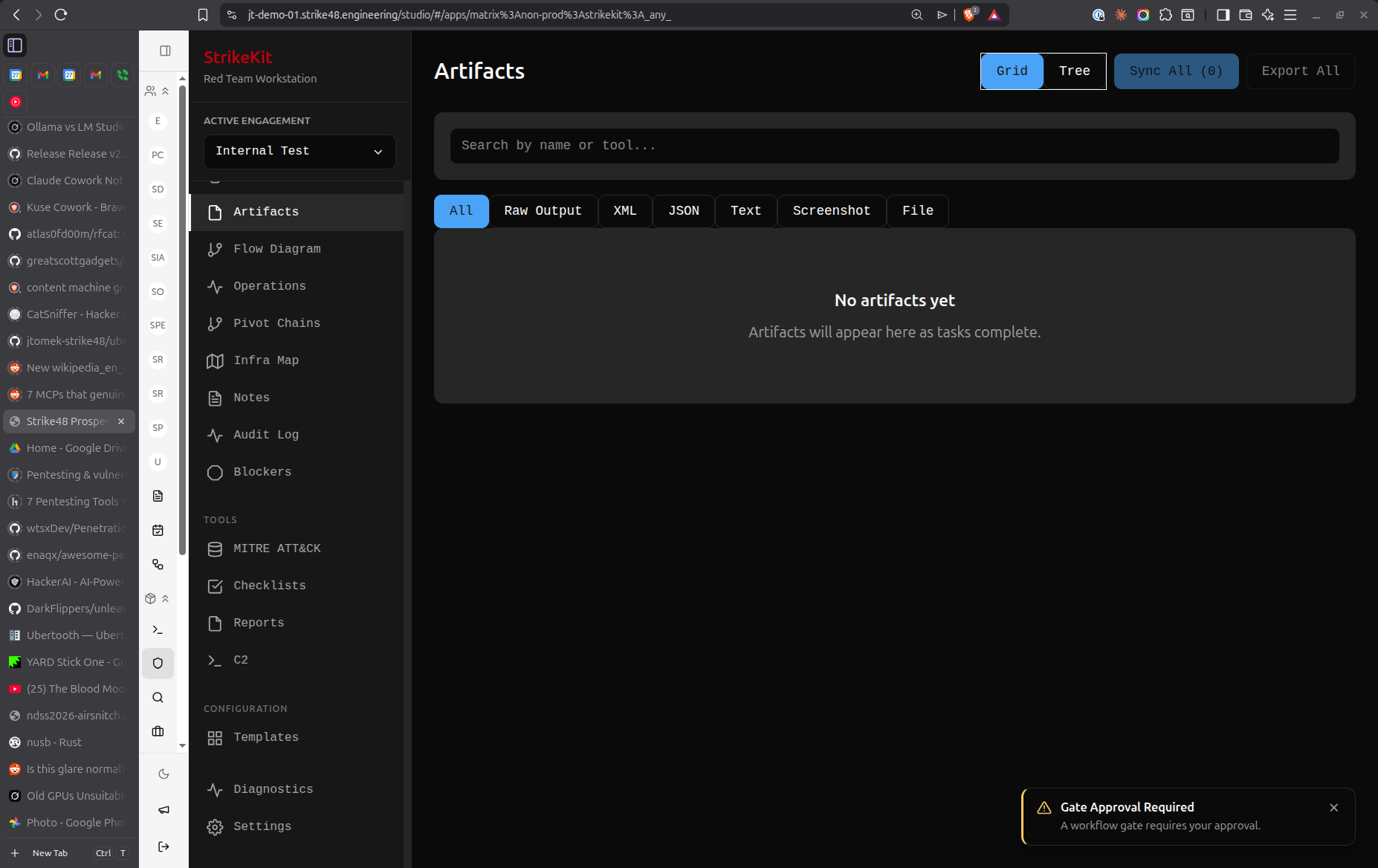 Evidence management with chain of custody
Findings
Vulnerabilities and misconfigurations for reports:
- Document security issues
- Assign severity (Critical/High/Medium/Low/Info)
- Link to affected targets
- Attach evidence
- Sort by criticality or time
- Export to reports
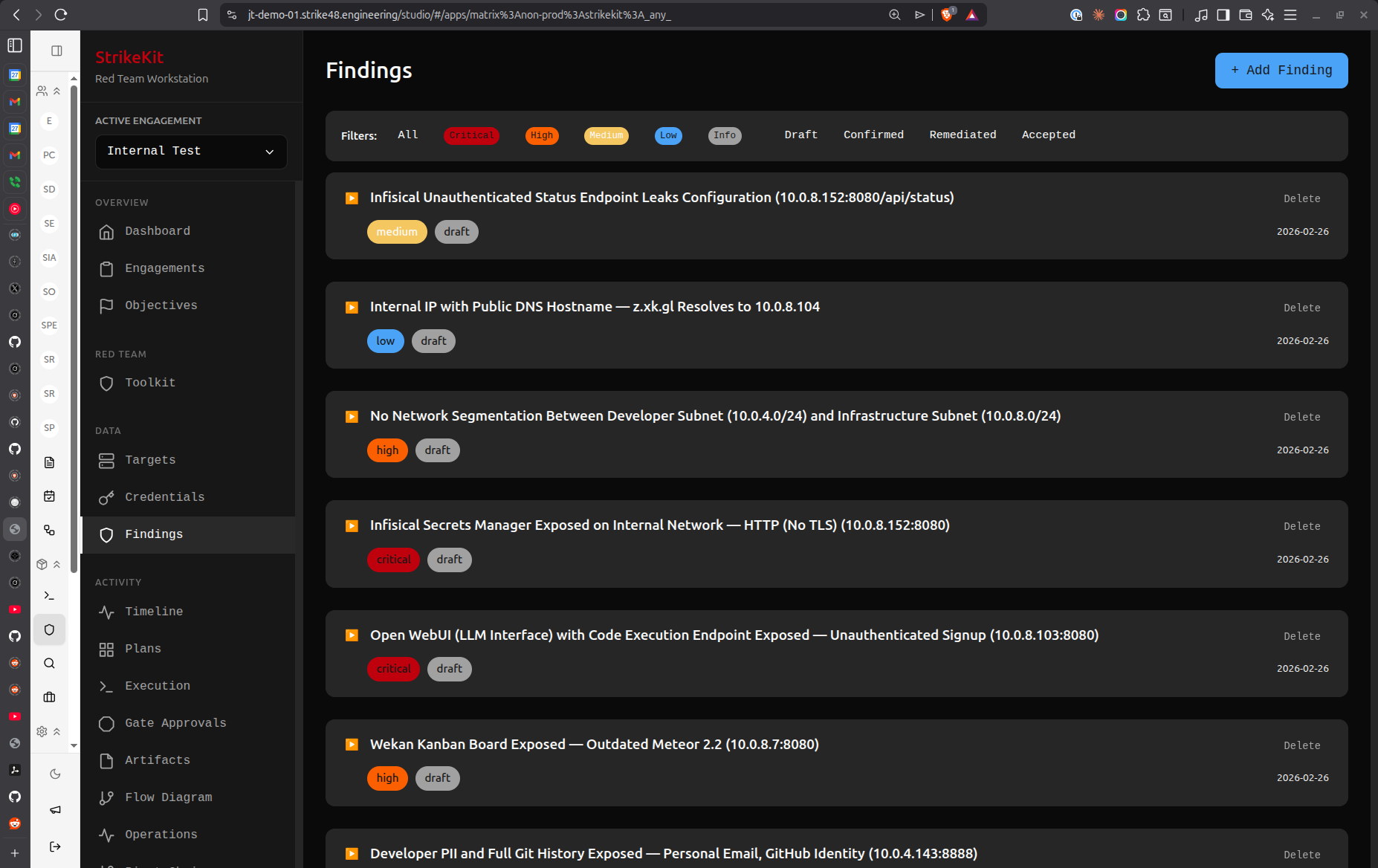 Vulnerability findings with severity and status tracking
Network Topology
Network map showing targets, connections, and pivot chains:
- Visualize discovered infrastructure
- Show connections between targets
- Highlight pivot chains
- Track compromised vs discovered status
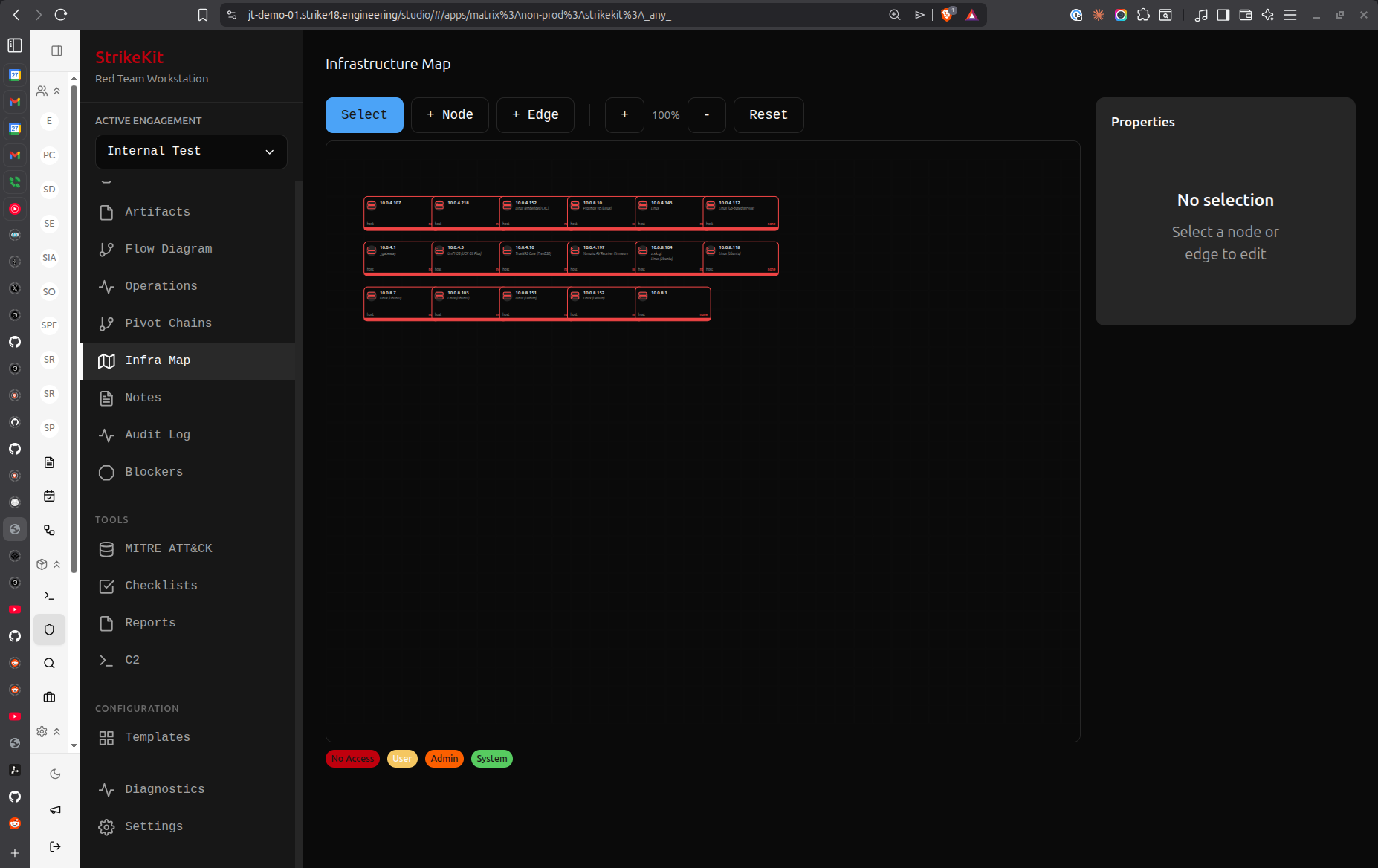 Infrastructure visualization with pivot chains
Tracking
Logging what happened - requires active engagement.
Kill Chain
Attack phase progression visualization:
- Reconnaissance → Discovery → Exploitation → Post-Exploitation
- Activity counts per phase
- Collapsible phase timelines
- Progress indicators
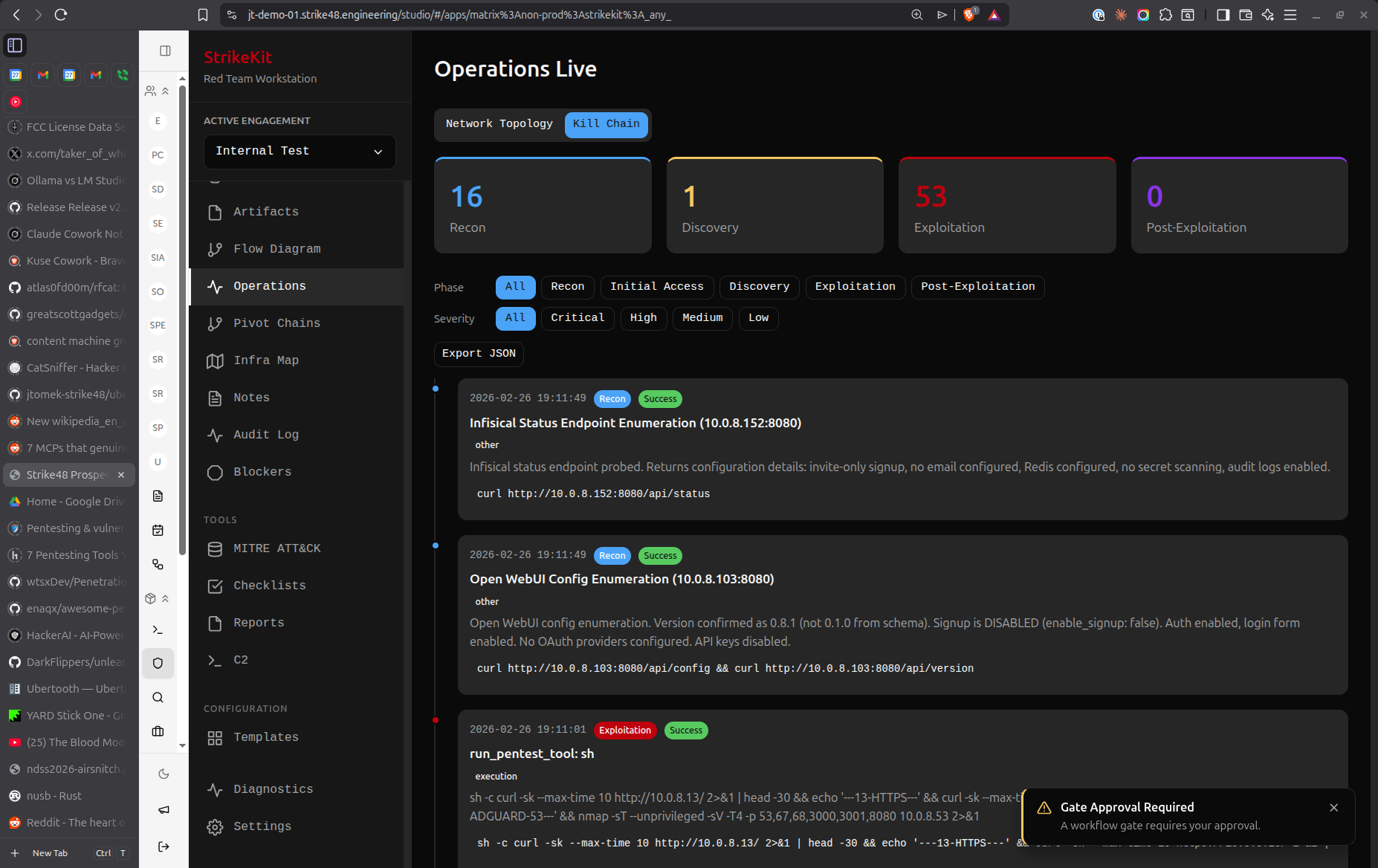 Attack progression through cyber kill chain phases
Timeline
Chronological event log of major milestones:
- Significant events
- Phase transitions
- Compromises
- Findings discovered
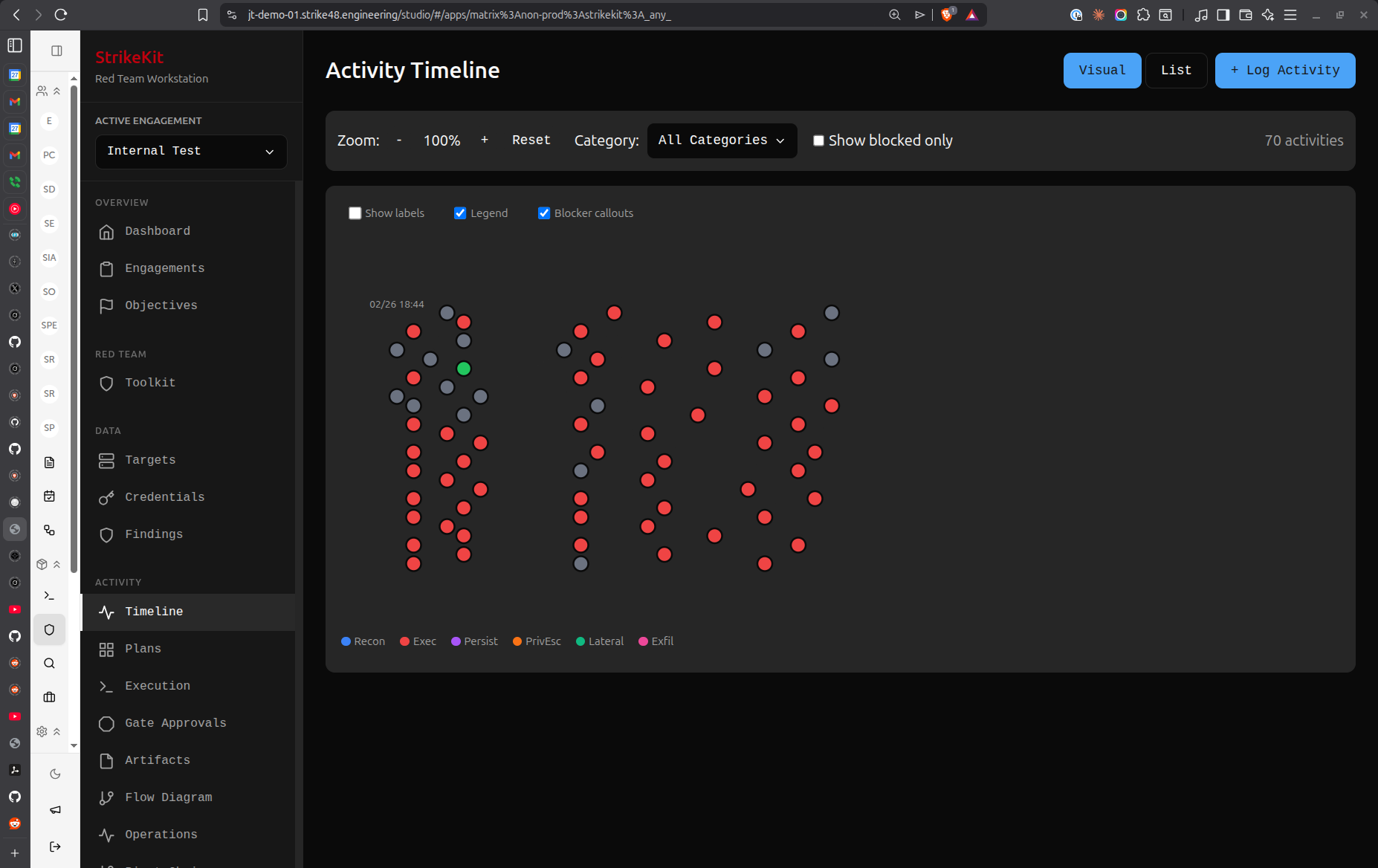 Chronological event tracking and milestones
Audit Log
Detailed action log - every action taken:
- Complete audit trail
- Command history
- Configuration changes
- User actions
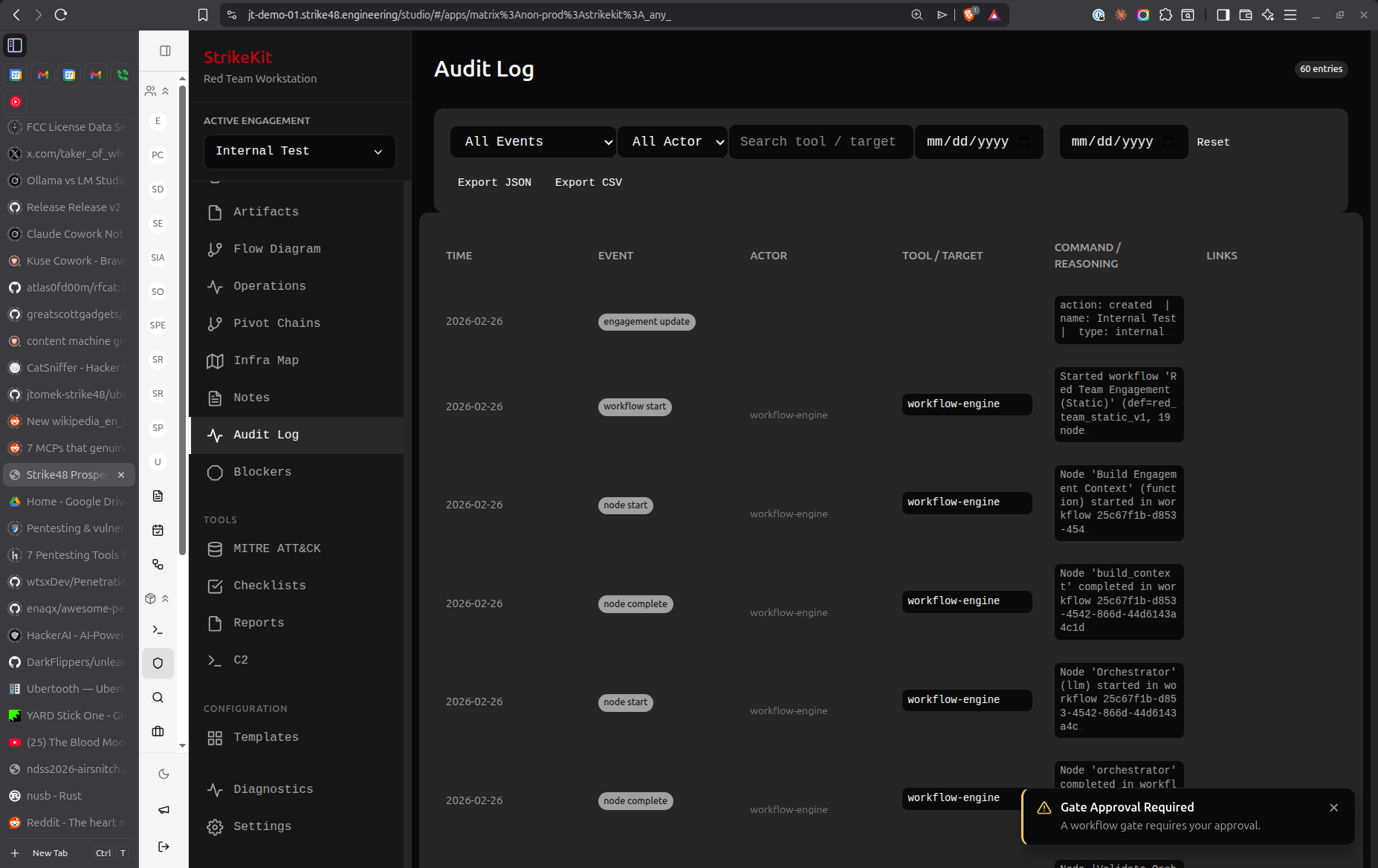 Comprehensive audit log showing all system actions
Blockers
Obstacles requiring attention:
- Technical blockers
- Approval gates
- Out-of-scope discoveries
- Notifications and alerts
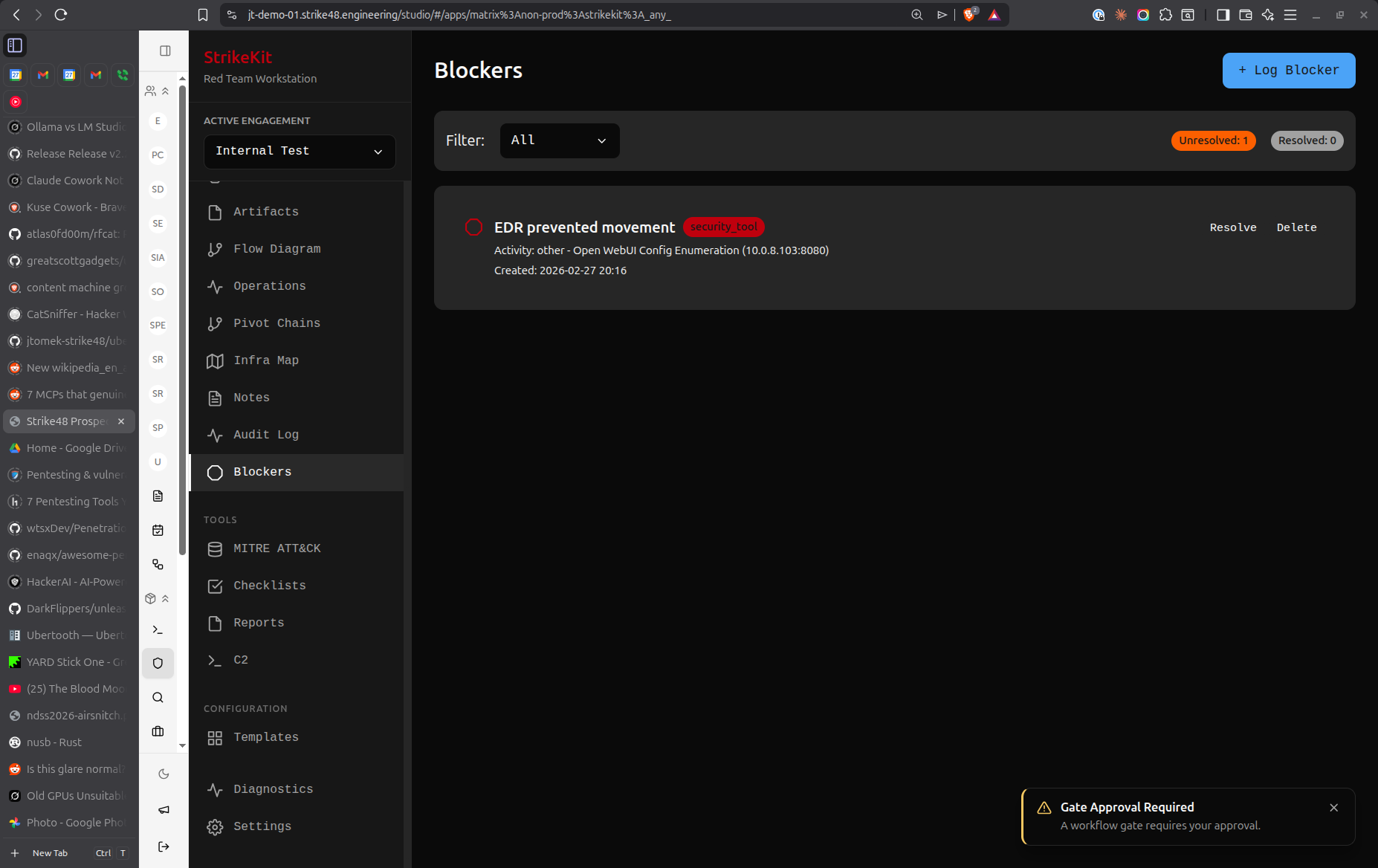 Blocker tracking interface for obstacles and gates
Reporting
Deliverables - requires active engagement.
Notes
Engagement-wide notes with tagging and linking:
- General observations
- Technical notes
- Link to targets, findings, objectives
- Tag and filter support
MITRE ATT&CK
Technique mapping for reports:
- Browse MITRE ATT&CK framework
- Tag activities with techniques
- Generate technique coverage reports
- Map findings to tactics/techniques
Reports
Generated reports from engagement data:
- Executive summary
- Technical findings
- Methodology
- MITRE ATT&CK coverage
- PDF export
Toolkit
Operational tools - always available.
Reconnaissance
AI-assisted reconnaissance workflows:
- Automated discovery
- OSINT collection
- Service enumeration
- Results auto-populate Targets
C2
Command and control infrastructure:
- Start/stop listeners
- Manage agents
- Generate payloads
- Integration with external frameworks (coming soon)
System
Configuration and diagnostics - always available.
Diagnostics
System health and logs:
- Application logs
- System status
- Update checks
- Performance metrics
Settings
Application configuration:
- Database location
- API keys
- Preferences
- Export/import settings
Top Bar
Engagement Selector
Dropdown to select active engagement. When no engagement is selected, engagement-specific views are disabled.
User Menu
Profile, preferences, and logout (when using connector mode).
Common Patterns
Creating Items
Most views have a Create or Add button in the top-right corner.
Filtering and Sorting
Many list views support:
- Text search
- Status filters
- Severity filters
- Time-based sorting
Linking Items
Related items can be linked:
- Findings → Targets
- Findings → Evidence
- Targets → Credentials
- Objectives → Findings
Badges
Notification badges appear on sidebar items:
- Draft findings count
- Pending approval gates
- Unresolved blockers
Keyboard Shortcuts
| Shortcut | Action |
|---|---|
Ctrl/Cmd + K |
Quick command palette |
Ctrl/Cmd + N |
New item (context-aware) |
Ctrl/Cmd + S |
Save current form |
Esc |
Close modal/cancel |
Tips
- Start with Planning: Use the Planning view to structure your engagement before execution
- Set Objectives Early: Define clear objectives to measure success
- Link Everything: Connect findings to targets, evidence, and objectives for comprehensive reports
- Use Checklists: Follow methodology checklists to avoid missing steps
- Tag Activities: Tag activities with MITRE techniques for better reporting
- Monitor Kill Chain: Use Kill Chain view to track progression through attack phases